Code Walkthrough: React, CSS animations, and state management
A few working examples for React components, CSS animations, and state, written to be copied and broken.
Lorenzo ScaturchioLos AngelesAbout the author →
ExploreTechnology & attention
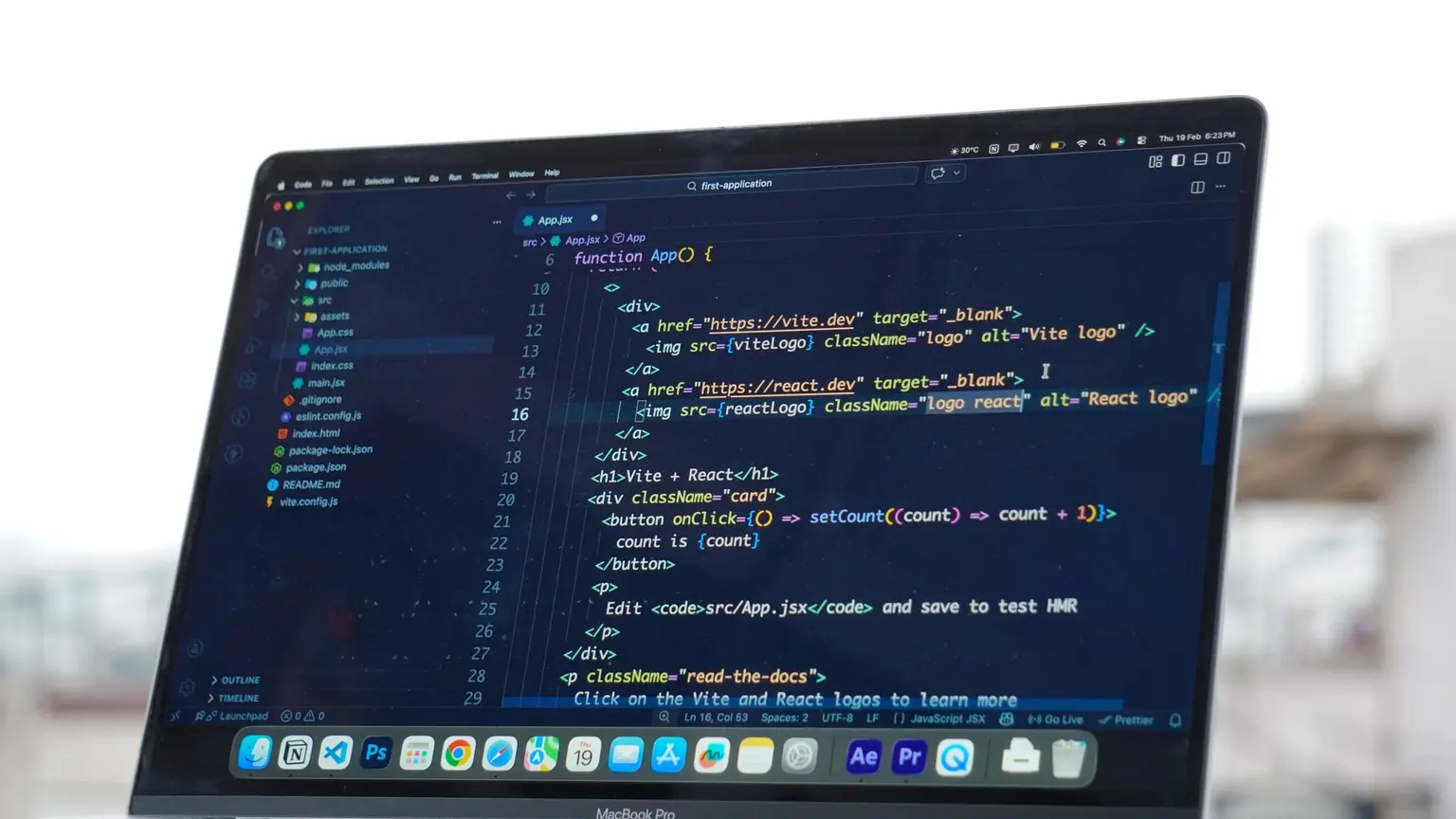
You learn programming by reading working code and then poking at it until it breaks. So here are a few small examples you can do exactly that with: a React counter, some CSS animations, a todo list that manages real state. Copy them, change a value, see what falls over.
React example: building a counter
A plain counter component. Copy it into a project and change the increment value, or add a decrement button:
import { useState } from 'react';
export default function Counter() {
const [count, setCount] = useState(0);
return (
<div style={{
fontFamily: 'system-ui, sans-serif',
padding: '2rem',
textAlign: 'center',
}}>
<h1 style={{ fontSize: '3rem', margin: '0 0 1rem' }}>
{count}
</h1>
<button
onClick={() => setCount(count + 1)}
style={{
padding: '0.75rem 1.5rem',
fontSize: '1rem',
backgroundColor: '#3d6b1f',
color: 'white',
border: 'none',
borderRadius: '0.5rem',
cursor: 'pointer',
}}
>
Increment
</button>
<p style={{ color: '#666', marginTop: '1rem' }}>
Try adding a decrement button!
</p>
</div>
);
}
Add a "Decrement" button that takes the count down. Once that works, try a "Reset" button that sets it back to zero.
CSS animation example
A pulsing ring, built from a few divs and a keyframe. Change the colors, the timing, the number of rings:
<!DOCTYPE html>
<html>
<head>
<link rel="stylesheet" href="/styles.css" />
</head>
<body>
<div class="container">
<div class="pulse-ring"></div>
<div class="pulse-ring delay-1"></div>
<div class="pulse-ring delay-2"></div>
<div class="center-dot"></div>
</div>
<p class="hint">Try changing the colors or animation timing!</p>
</body>
</html>
* {
margin: 0;
padding: 0;
box-sizing: border-box;
}
body {
min-height: 100vh;
display: flex;
flex-direction: column;
align-items: center;
justify-content: center;
background: linear-gradient(135deg, #1a1a2e 0%, #16213e 100%);
font-family: system-ui, sans-serif;
}
.container {
position: relative;
width: 200px;
height: 200px;
display: flex;
align-items: center;
justify-content: center;
}
.pulse-ring {
position: absolute;
width: 100px;
height: 100px;
border: 3px solid #84cc16;
border-radius: 50%;
animation: pulse 2s ease-out infinite;
}
.delay-1 {
animation-delay: 0.5s;
}
.delay-2 {
animation-delay: 1s;
}
.center-dot {
width: 20px;
height: 20px;
background: #84cc16;
border-radius: 50%;
box-shadow: 0 0 20px #84cc16;
}
@keyframes pulse {
0% {
transform: scale(0.5);
opacity: 1;
}
100% {
transform: scale(2);
opacity: 0;
}
}
.hint {
color: #666;
margin-top: 2rem;
font-size: 0.875rem;
}
A few things to try:
- Change
#84cc16to a different color (try#60a5fafor blue or#f472b6for pink) - Adjust the
animationduration from2sto1sor3s - Modify the
scale()values in the keyframes - Add more
.pulse-ringelements with different delays
Interactive state management
A bigger example: a todo list with add, toggle, and delete. Most of the interesting parts are in how the three handlers update state without mutating it.
import { useState } from 'react';
const initialTodos = [
{ id: 1, text: 'Learn React', completed: true },
{ id: 2, text: 'Build something cool', completed: false },
{ id: 3, text: 'Ship it!', completed: false },
];
export default function TodoApp() {
const [todos, setTodos] = useState(initialTodos);
const [input, setInput] = useState('');
const addTodo = (e) => {
e.preventDefault();
if (!input.trim()) return;
setTodos([
...todos,
{ id: Date.now(), text: input, completed: false }
]);
setInput('');
};
const toggleTodo = (id) => {
setTodos(todos.map(todo =>
todo.id === id
? { ...todo, completed: !todo.completed }
: todo
));
};
const deleteTodo = (id) => {
setTodos(todos.filter(todo => todo.id !== id));
};
return (
<div style={styles.container}>
<h1 style={styles.title}>Todo List</h1>
<form onSubmit={addTodo} style={styles.form}>
<input
value={input}
onChange={(e) => setInput(e.target.value)}
placeholder="Add a new task..."
style={styles.input}
/>
<button type="submit" style={styles.addButton}>
Add
</button>
</form>
<ul style={styles.list}>
{todos.map(todo => (
<li key={todo.id} style={styles.item}>
<span
onClick={() => toggleTodo(todo.id)}
style={{
...styles.text,
textDecoration: todo.completed ? 'line-through' : 'none',
color: todo.completed ? '#888' : '#333',
cursor: 'pointer',
}}
>
{todo.text}
</span>
<button
onClick={() => deleteTodo(todo.id)}
style={styles.deleteButton}
>
Delete
</button>
</li>
))}
</ul>
<p style={styles.count}>
{todos.filter(t => !t.completed).length} items remaining
</p>
</div>
);
}
const styles = {
container: {
fontFamily: 'system-ui, sans-serif',
maxWidth: '400px',
margin: '0 auto',
padding: '2rem',
},
title: {
fontSize: '1.5rem',
marginBottom: '1rem',
color: '#333',
},
form: {
display: 'flex',
gap: '0.5rem',
marginBottom: '1rem',
},
input: {
flex: 1,
padding: '0.5rem',
border: '1px solid #ddd',
borderRadius: '0.25rem',
fontSize: '1rem',
},
addButton: {
padding: '0.5rem 1rem',
backgroundColor: '#3d6b1f',
color: 'white',
border: 'none',
borderRadius: '0.25rem',
cursor: 'pointer',
},
list: {
listStyle: 'none',
padding: 0,
},
item: {
display: 'flex',
justifyContent: 'space-between',
alignItems: 'center',
padding: '0.75rem',
borderBottom: '1px solid #eee',
},
text: {
flex: 1,
},
deleteButton: {
padding: '0.25rem 0.5rem',
backgroundColor: '#ef4444',
color: 'white',
border: 'none',
borderRadius: '0.25rem',
cursor: 'pointer',
fontSize: '0.75rem',
},
count: {
color: '#666',
fontSize: '0.875rem',
marginTop: '1rem',
},
};
Where to take it next:
- Add an "Edit" feature to modify existing todos
- Implement a filter to show All/Active/Completed tasks
- Add localStorage persistence so todos survive page refresh
- Style the completed items differently (maybe with a strikethrough animation)
Understanding React lifecycle with console logging
Sometimes the fastest way to understand effects is to watch them fire. This one logs on mount, on unmount, and on every count change. Copy it in, open the console, and click the button:
import { useState, useEffect } from 'react';
export default function LifecycleDemo() {
const [count, setCount] = useState(0);
useEffect(() => {
console.log('Component mounted!');
return () => console.log('Component will unmount');
}, []);
useEffect(() => {
console.log('Count changed to:', count);
}, [count]);
const handleClick = () => {
console.log('Button clicked, current count:', count);
setCount(count + 1);
};
return (
<div style={{ padding: '2rem', fontFamily: 'system-ui' }}>
<h2>Lifecycle Demo</h2>
<p>Count: {count}</p>
<button
onClick={handleClick}
style={{
padding: '0.5rem 1rem',
backgroundColor: '#3d6b1f',
color: 'white',
border: 'none',
borderRadius: '0.25rem',
cursor: 'pointer',
}}
>
Increment & Log
</button>
<p style={{ color: '#666', marginTop: '1rem', fontSize: '0.875rem' }}>
Open your browser console to see the logs!
</p>
</div>
);
}
Watch the order in the console. The mount effect runs once; the count effect runs every time the state changes. The dependency array is doing all the work there, and seeing it happen beats reading about it.
Wrapping up
None of these are clever. They're the patterns you end up writing over and over in frontend work. The point isn't to read them, it's to change the numbers until something stops behaving and you have to figure out why. That part is where the learning is.
Enjoyed this?
An email when I publish something new. That is the whole list; I have never sent it for any other reason.
Get notified when I publish new articles. Unsubscribe anytime.